Connecting to the Workstation
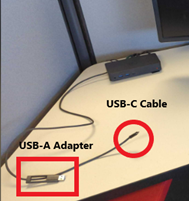
Plug one end of the USB-C cable into your computer, with the other end connected to the USB-C port on the docking station. If your computer does not have a USB-C port, plug the USB-A adapter into your computer instead.
|
Dell |
Dell Dock with USB-C cable and Optional USB-A adapter |
|
Mac |
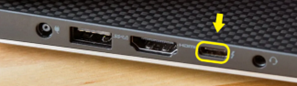
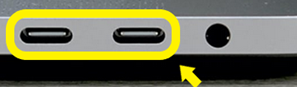
Note for Mac users:
- Newer Macbooks with M1 processors may have trouble connecting to dual monitors. To resolve, contact Helpdesk to install or update the DisplayLink driver on your computer.
Printer Setup:
*Please ensure you are connected to the KW Staff network before attempting to print.
Windows Users:
- Click the Start menu in the lower-left corner of your Windows taskbar > Search for Printer & Scanners > Click the + symbol at the top to Add a Printer > After it scans for available printers, select the desired printer from the list > click Add Device to install the printer.
Mac Users:
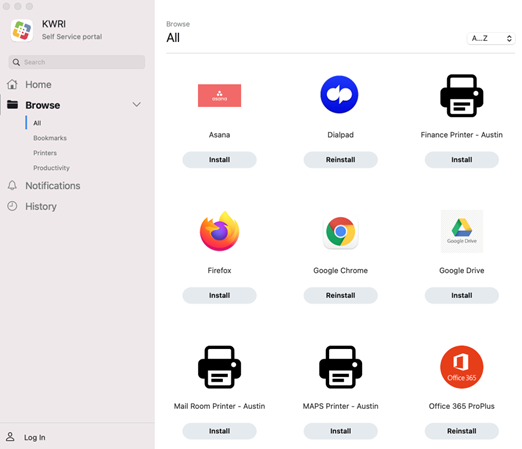
- Go to Finder > Applications > Self Service and install the desired printer(s):
.
Hotel Seating Policy:
- Please do not take or relocate any equipment at this shared Hotel Desk. If you are missing something or need assistance, reach out to Helpdesk.
- Before packing up, please reset the space as you found it. Place any waste in the trash bins and wipe down the workstation for the next team member.
Questions?
- Email helpdesk@kw.com for technology support or drop by the Helpdesk office on the 4th floor for urgent assistance. Please provide the Hotel Desk number when reaching out.
- Email facilities@kw.com for help with badges, office supplies, desk & conference room bookings, and other office-related requests.
Comments
0 comments
Article is closed for comments.